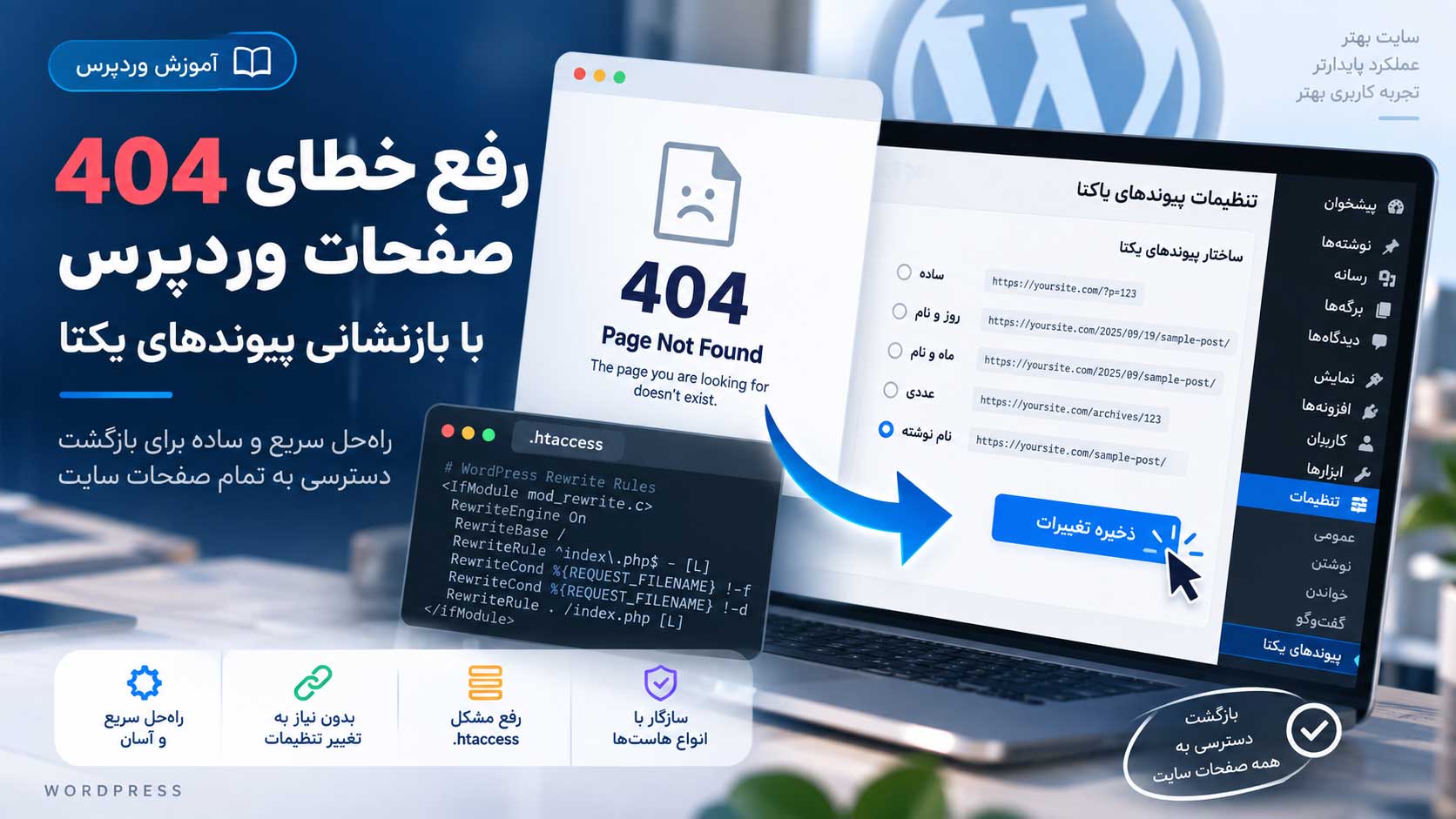
Why Do Internal WordPress Pages Show a 404 Error?
A common WordPress issue occurs when the homepage loads normally, but internal pages such as posts, pages, categories, or WooCommerce products return a 404 – Page Not Found error.
This does not necessarily mean that the content has been deleted.
In many cases, WordPress is unable to correctly process the URL because its permalink or rewrite rules are not working properly.
WordPress uses a system called Permalinks to generate clean and user-friendly URLs. These URLs rely on rewrite rules that tell the web server how each request should be handled.
On Apache-based servers, these rules are commonly managed through the .htaccess file.
A Simple Example
Your homepage may work correctly:
example.com
But an internal page such as:
example.com/about-us/
may return a 404 error.
If the page still exists inside the WordPress dashboard, resetting the permalink rules should be one of the first troubleshooting steps.
The Quick Fix: Resave WordPress Permalinks
Log in to your WordPress dashboard and navigate to:
Settings → Permalinks
You do not need to change your current permalink structure.
Simply scroll down and click the Save Changes button.
When you save the permalink settings, WordPress refreshes its rewrite rules. On many Apache servers, WordPress may also update the required rules inside the .htaccess file.
After saving the settings, open one of the pages that previously returned a 404 error.
In many cases, the page will start working immediately.
Why Does This Fix Work?
WordPress uses a set of internal rewrite rules to determine which content should be displayed for each URL.
These rules can occasionally become outdated or corrupted after certain changes, including website migrations, domain changes, plugin installations, theme changes, permalink modifications, backup restoration, or server configuration changes.
Saving the permalink settings forces WordPress to regenerate these rewrite rules.
That is why such a simple action can often fix 404 errors across multiple internal pages.
What If the 404 Error Still Exists?
If saving the permalink settings does not resolve the issue, additional troubleshooting may be required.
On Apache servers, make sure the .htaccess file exists and can be read or updated by the server. The Apache mod_rewrite module may also need to be enabled.
If the website is running on Nginx, .htaccess is not used. In that case, the WordPress rewrite configuration inside the Nginx server settings should be checked.
Caching, security, SEO, and redirection plugins can also interfere with URLs in some situations. Clearing the WordPress cache, server cache, and reviewing recently changed plugins may help identify the cause.
Conclusion
If your WordPress homepage works but internal links return 404 errors, one of the fastest troubleshooting methods is to navigate to:
Settings → Permalinks
and click Save Changes without modifying any settings.
This refreshes the WordPress rewrite rules and can often restore broken internal URLs within seconds.
برای پروژهای مشابه آمادهاید؟اگر این موضوع به نیاز پروژه شما نزدیک است، میتوانیم درباره مسیر اجرا صحبت کنیم.
رزرو جلسه